Once you've added a Match Profile, it pays to add a campaign to it. This automatically sends buyers any new published listings that match their profile.
This article covers how to set up a campaign, what to consider when choosing how often it sends, and what to do when a buyer asks to stop receiving alerts.
How Do I Add a Campaign to a Match Profile?
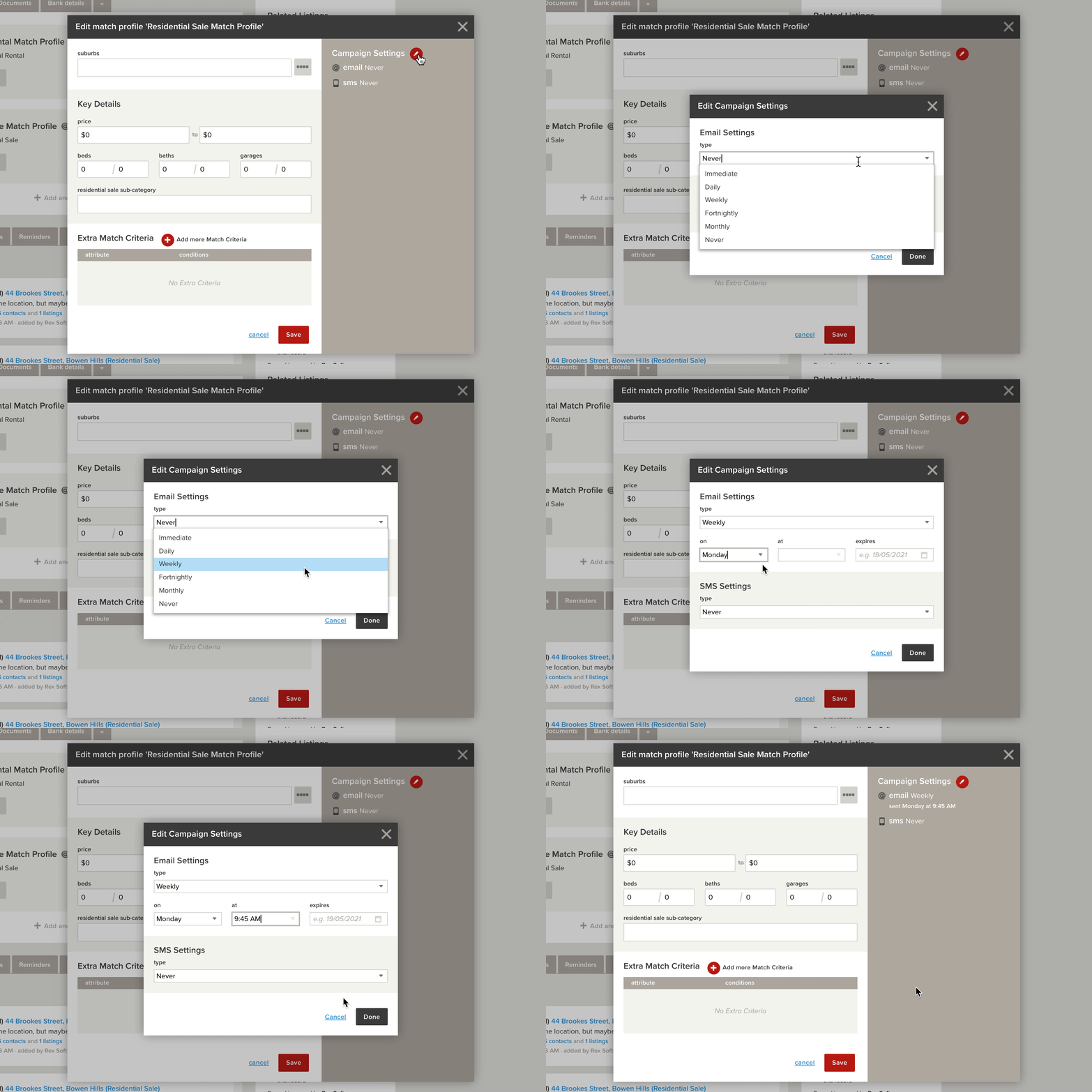
- Open the Match Profile. If you haven't created one, see Creating a Match Profile.
- In the right-hand pane, click the red Edit button next to Campaign Settings
- Under Email Settings, change Never to the time-frame you want emails sent (the settings are the same for SMS, so if you don't want to send emails, do the following under SMS Settings instead):
- Immediate: lets you set the time of day to send between, for example 9:00 AM and 5:00 PM (see the section below before using this option)
- Daily: gives you a time to send every day
- Weekly / Fortnightly / Monthly: lets you choose which day to send and at what time
- Set an expiry if you like. This is the date the campaign is cancelled, after which the buyer no longer receives automated emails.
- To set up automated SMS alerts, repeat steps 3 and 4 under SMS Settings (see the section below)
- When you're finished, click Done
- Click Save
This won't send your contact any listings right away, only new listings created from this point onwards. If you have existing listings you want to send to the buyer, see Manual Match.
What Should I Consider Before Choosing a Time-Frame?
Please Note: A few things to keep in mind with campaign timing and SMS:
- Using Immediate sends an email as soon as a listing is published. This is fine with the default Rex e-brochures, but if you use Siteloft there can be a short delay before the listing appears on your site, so buyers may briefly receive dead links. This is usually no more than an hour.
- If you create a large number of listings, buyers on Immediate will receive a lot of emails. To avoid this, use Daily or Weekly, which bundle several listings into a single digest.
- SMS can be a costly option. Each message uses Marketing Credits, so it's worth checking with management before turning on SMS in your campaign settings.
What If a Buyer Asks to Stop Receiving Alerts?
Rex can't unsubscribe a contact automatically if they reply STOP to an SMS. When a buyer asks to stop receiving alerts, you can either:
- Turn off the campaign - open the Match Profile and change the Email Settings or SMS Settings back to Never. Use this if the buyer only wants to stop receiving match alerts.
- Block the channel on their contact record - open the contact's Communication Preferences and block SMS or Email. Any running match campaign on that channel will be stopped overnight, and the contact won't receive merges or newsletters on that channel either.
If a contact is marked as Do Not Contact, their running email and SMS campaigns are also stopped overnight. For more on this, see - Contacts: Communication Preferences and Do Not Contact.
Please Note: Blocking Phone or Letter doesn't affect match campaigns. Only Email and SMS blocks stop a running campaign.
For more on how these updates are sent and triggered, see What Are Automatic Updates?
❓ FAQs
A buyer replied STOP to an SMS alert but is still getting them. Why?
Rex can't read STOP replies. Turn off the SMS campaign on their Match Profile, or block SMS in their Communication Preferences.
I blocked SMS on a contact, but their campaign sent today. Why?
Running campaigns on a blocked channel are stopped overnight, so a campaign may still send on the same day the block is added.
Will a new campaign send listings the buyer already knows about?
No. A new campaign only sends listings published from that point onwards. To send existing listings, use Manual Match.