Bulk merges let you send the same email, SMS or letter to lots of contacts at once, while still personalising each one. As with a merge to a single contact, you can type the content from scratch or use a template. Templates let you use merge tags, which pull in information from each record, so every contact's name changes automatically as the merge goes out.
This article covers how to send a bulk email merge and a bulk SMS merge, what to check before you send, and what happens to contacts who have opted out. For more on creating templates, see - Merge Templates: Creating and Editing Templates.
You can send a bulk merge from the list view of any of these modules:
- Contacts
- Properties
- Listings
Sending a bulk merge is a three-step process. For bulk letter merges, see - Scheduled Mail Merges and Bulk Mail Merges.
How Do I Send a Bulk Email Merge Using a Template?
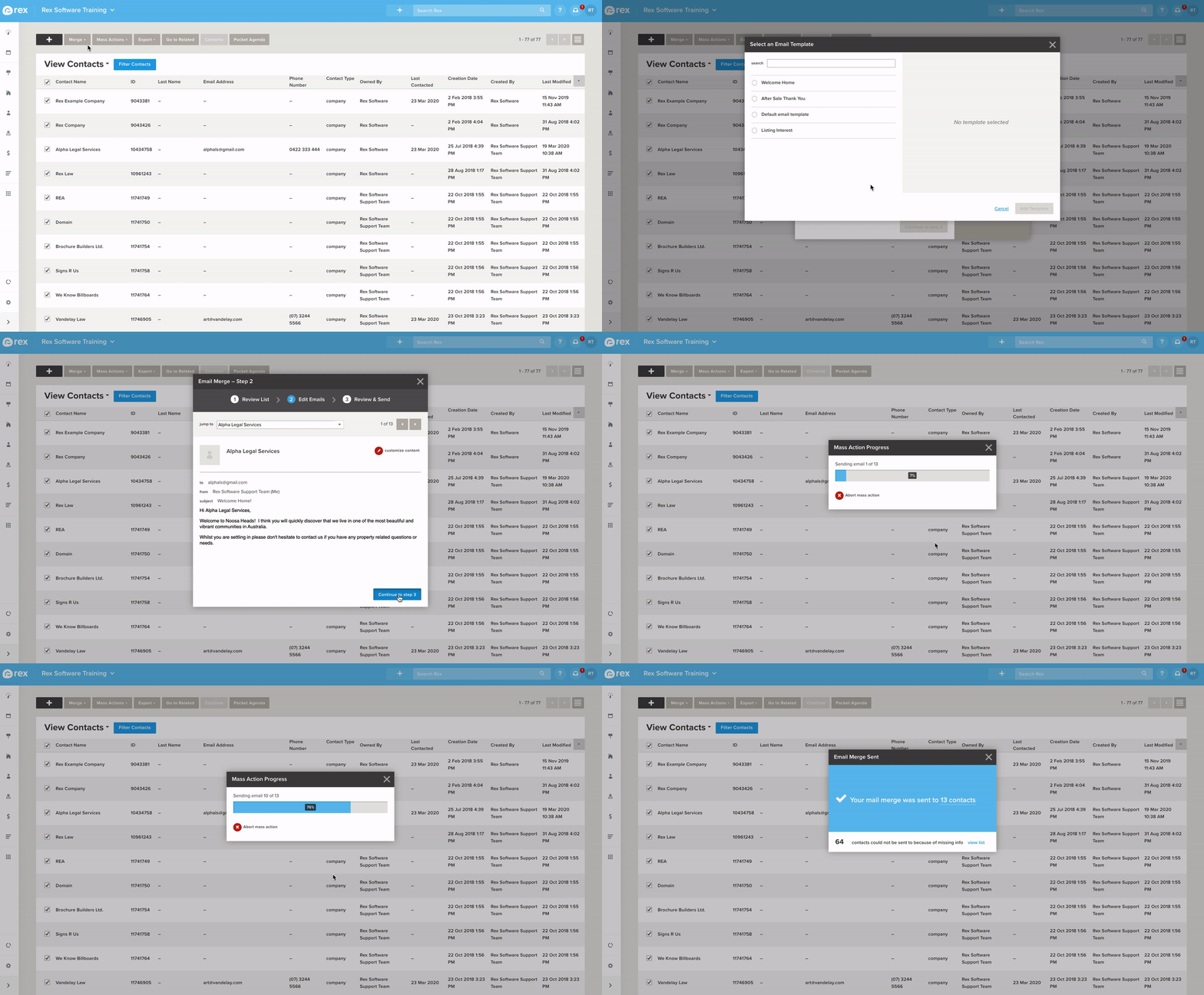
- Go to the module you want to send from (Contacts, Properties or Listings)
- Tick the checkbox next to the records you want to send to
- Click Merge > Email
- Click the dropdown under From to choose who the email will appear to come from
- Click Choose a Template
- Choose the template you want to use and click Save
- If you're sending from Properties or Listings, choose your recipient under Sending To
- Click Continue to Step 2
How Do I Send a Bulk Email Without a Template, or With an Attachment?
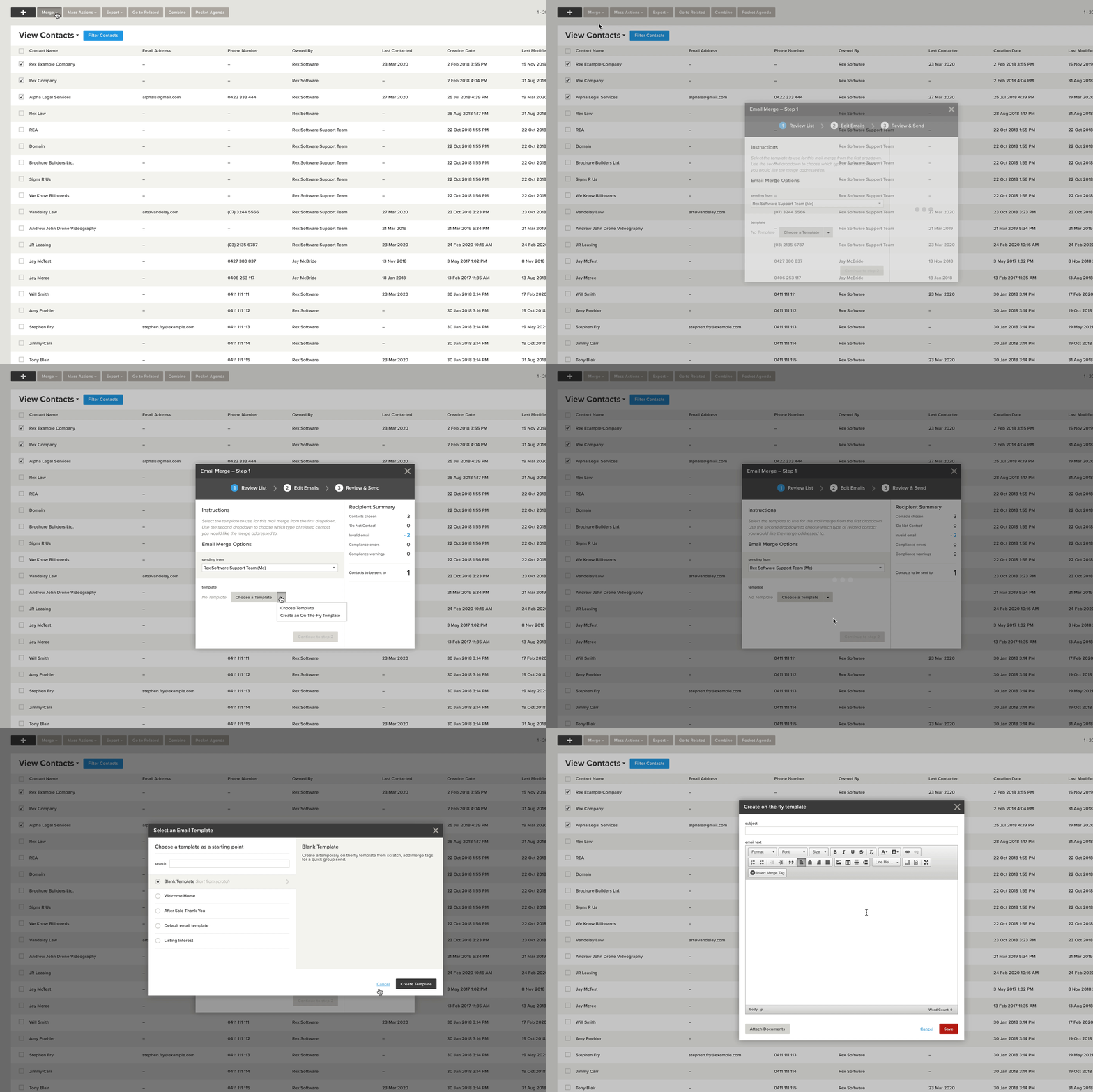
- Follow steps 1 to 4 above
- Click the dropdown to the right of Choose a Template
- Click Create an On-The-Fly Template
- Choose a template to use as a starting point, or choose the blank template
- Click Create Template
- Enter a subject
- Enter your text
- To include an attachment, click the attachment option. For more on this, see - Adding Attachments to an Email Merge.
- Click Save
- If you're sending from Properties or Listings, choose your recipient under Sending To
- Click Continue to Step 2
How Do I Send a Bulk SMS Merge Using a Template?
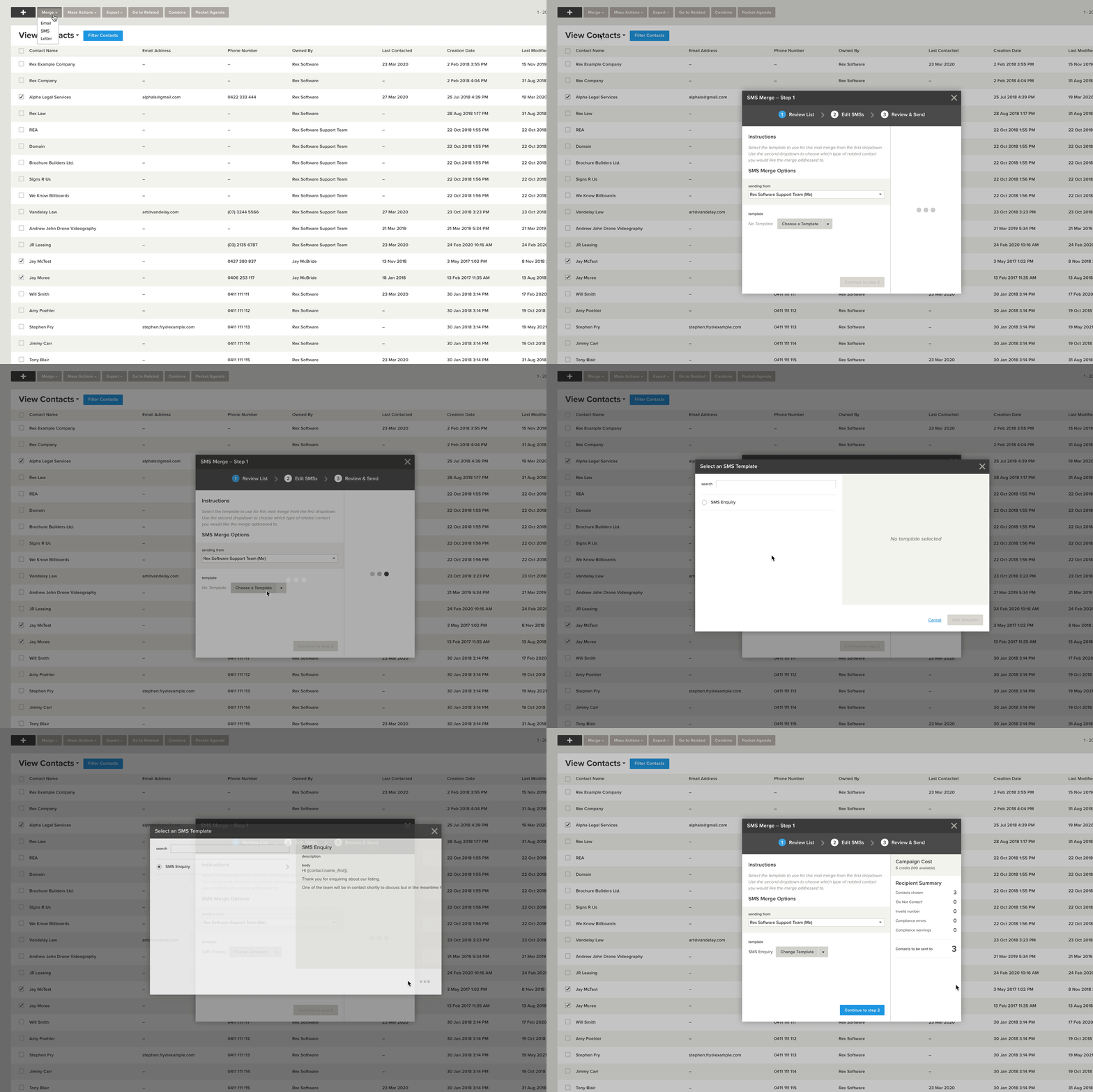
- Go to the module you want to send from (Contacts, Properties or Listings)
- Tick the checkbox next to the records you want to send to
- Click Merge > SMS
- Click the dropdown under From to choose who the SMS will appear to come from
- Click Choose a Template
- Choose the template you want to use and click Save
- If you're sending from Properties or Listings, choose your recipient under Sending To
- Click Continue to Step 2
How Do I Send a Bulk SMS Without a Template?
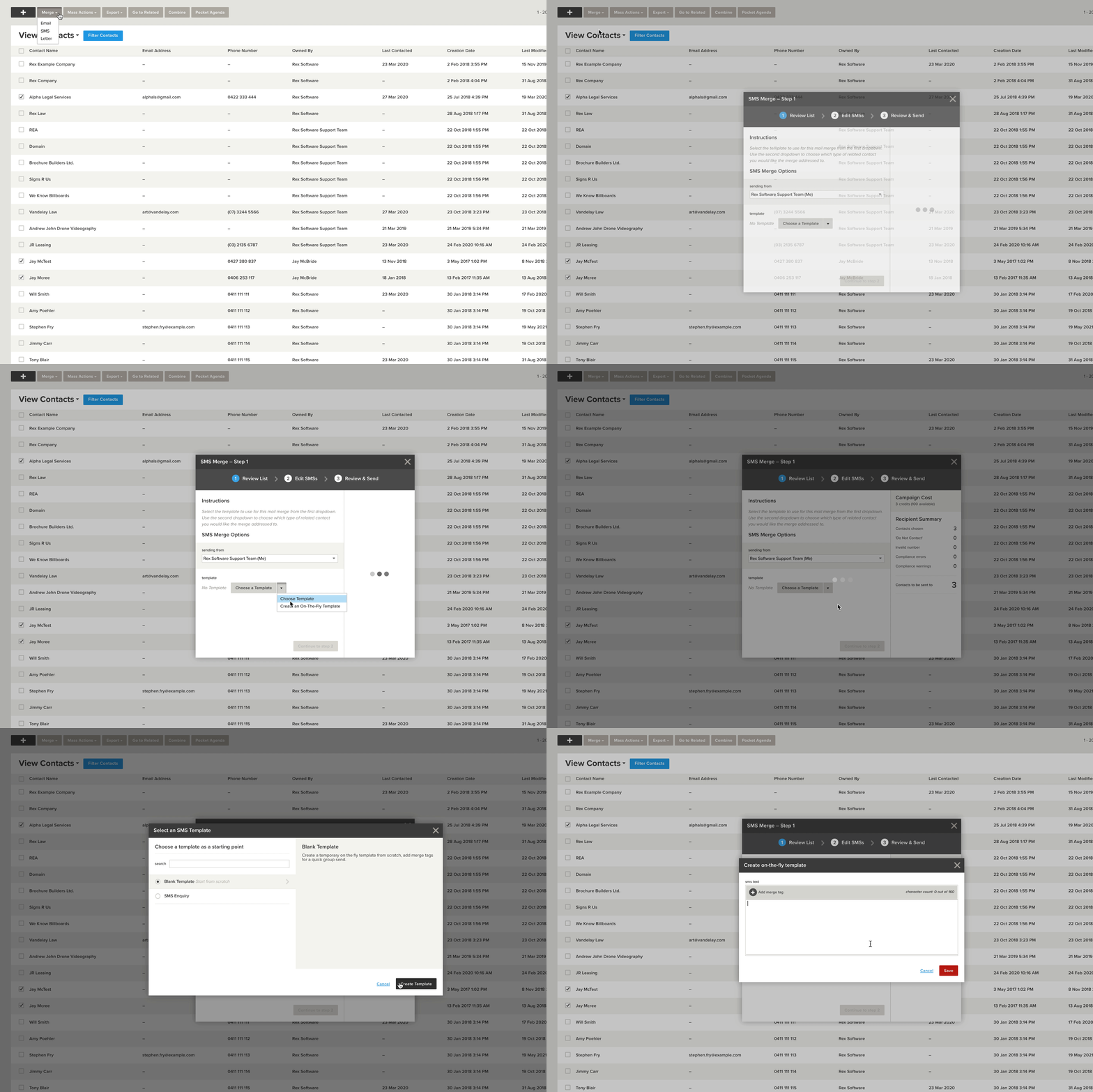
- Follow steps 1 to 4 above
- Click the dropdown to the right of Choose a Template
- Click Create an On-The-Fly Template
- Choose a template to use as a starting point, or choose the Blank Template
- Click Create Template
- Enter a subject
- Enter your text
- Click Save
- If you're sending from Properties or Listings, choose your recipient under Sending To
- Click Continue to Step 2
How Do I Check and Edit Individual Merges? (Step 2)
Step 2 lets you check each individual merge and edit the content if you need to. This works the same way for email and SMS.
- To change the merge you're viewing, either:
- Click the Jump To dropdown and choose another merge, or
- Use the left and right arrows
- To edit the merge you're viewing, click the red button next to Customize Content
- When you're finished, click Continue to Step 3
How Do I Review and Send the Merge? (Step 3)
Step 3 lets you review the merge before it goes out. You'll see a breakdown of:
- Who the merge is coming from
- Which template is used
- If you're sending from Properties or Listings, which contact you're sending to
- How many contacts the merge will attempt to send to
- How many contacts aren't eligible (for example, no email address or mobile number on their contact record)
- How many messages have been modified
- How many contacts the merge will actually be sent to
When you've reviewed the details and are ready to send, click Send Campaign.
What Happens to Contacts Who Have Opted Out?
Rex won't send a merge to a contact who has asked not to be contacted on that channel:
- Contacts with Email blocked in their Communication Preferences won't be sent a bulk email
- Contacts with SMS blocked won't be sent a bulk SMS
- Contacts with Letter blocked won't be sent a bulk letter
- Contacts marked as Do Not Contact won't be sent any merge
Check the breakdown in Step 3 before sending to see how many contacts the merge will actually go to. For more on this, see - Contacts: Communication Preferences and Do Not Contact.
Please Note: Mail merges don't include an unsubscribe link, so we don't recommend them for large marketing sends. For regular marketing to a large group, use a Newsletter instead. For more on this, see - What is the difference between a Mail Merge and a Newsletter?
❓ FAQs
Why is the number of contacts in Step 3 lower than the number I selected?
Some contacts aren't eligible. They may be missing an email address or mobile number, be marked as Do Not Contact, or have that channel blocked in their Communication Preferences.
Can I change the message for just one contact?
Yes. In Step 2, jump to that contact's merge and click the red button next to Customize Content.
Which modules can I send a bulk merge from?
Contacts, Properties and Listings, from the list view.