Merges in Rex let you send communications to your contacts by email, SMS, or as letters you can print. You can type the content as you go, or use a template.
Templates let you use merge tags, which pull specific information from the record you're sending from. For example, if you're building a letter template that will be sent to lots of different contacts, merge tags can pull each contact's name and address into the letter so every one is personalised.
This article covers which module to send from, how to send an email, SMS or letter to a contact, and what happens if the contact has opted out of that channel.
Which Module Should I Send My Merge From?
When you create a merge template, you choose the module it belongs to. The module decides which information the template can pull in. For example, a template created in the Listings module can pull in the price, address and other key details from the listing record.
- Contacts Module - gives you merge tags for the contact. Send from here if you don't need to merge in information from a property record.
- Property Module - gives you merge tags for the property. Send from here if you need to include property details, or send to contacts related to the property (for example, tenants or past owners).
- Listings Module - similar to the Property Module, but also includes merge tags for contract details. Use this for all correspondence about listing and selling a property.
- Contracts Module - lets you pull in key dates from a contract, found on the Legal tab of a listing record
For more on creating templates, see - Merge Templates: Creating and Editing Templates.
How Do I Send an Email to a Contact?
- Go to the record you want to send an email from
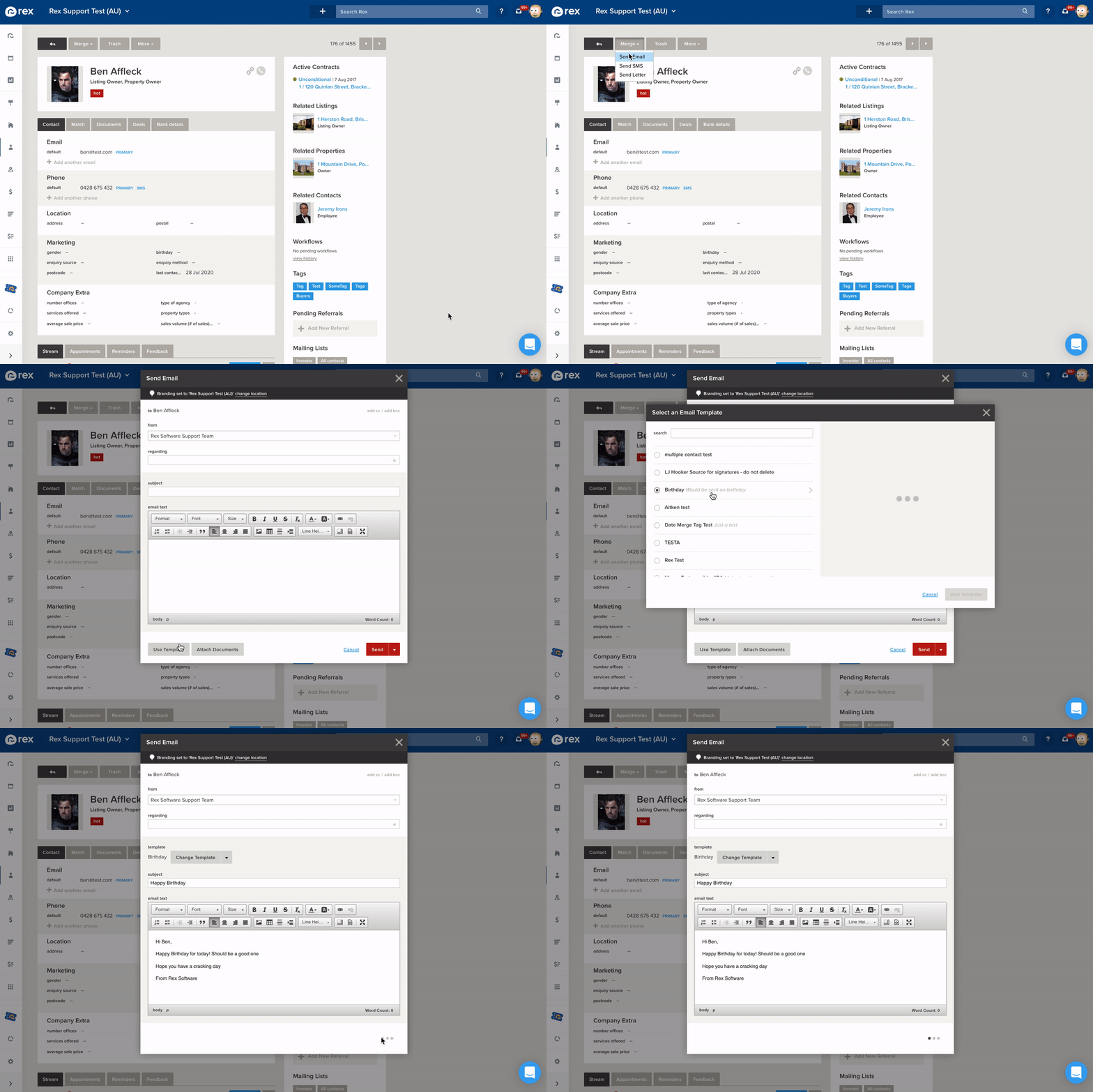
- Click Merge > Send Email at the top of the record
- If you're sending from a contact record, choose the property or listing you want to attach to the email. If you're sending from a property or listing, choose the contact you want to send to.
- Click the dropdown under From to choose who the email will appear to be sent from. This will also be the reply-to address. The chosen Rex user must have a valid email address on their profile.
- Enter a Subject line
- Either:
- Enter your email content into the text box, or
- Click Use Template to choose a template
- Click Send
How Do I Send an SMS to a Contact?
- Go to the record you want to send an SMS from. The contact you're sending to must have a valid mobile number. If you're sending from a listing or property record, you may need to open the contact to check.
- Click Merge > Send SMS
- If you're sending from a contact record, choose the property or listing you want to attach to the SMS. If you're sending from a property or listing, choose the contact you want to send to.
- Click the dropdown under From to choose who the SMS will appear to be sent from. This will also be the reply-to phone number. The chosen Rex user must have a valid mobile number on their profile.
- Either:
- Enter your SMS content into the text box, or
- Click Use Template to choose a template
- Click Send
How Do I Send a Letter to a Contact?
- Go to the record you want to send a letter from. The contact you're sending to must have a valid address. If you're sending from a listing or property record, you may need to open the contact to check.
- Click Merge > Send Letter
- If you're sending from a contact record, choose the property or listing you want to attach to the letter. If you're sending from a property or listing, choose the contact you want to send to.
- Click the dropdown under From to choose who the letter will appear to be sent from
- Tick the box if you want to use your pre-loaded letterhead. To upload a letterhead, see - Branding.
- Either:
- Enter your letter content into the text box, or
- Click Use Template to choose a template
- Click Send
- Choose either:
- Download Letter to save the PDF to your computer for printing, or
- Email Letter to create a new email merge with the PDF letter attached. This is a temporary file, and the link will only work for two weeks.
Why Can't I See My Template?
Please Note: Some templates won't be visible if you haven't chosen a property or listing to send with. This happens when a template uses property or listing merge tags. If you can't see your template, close the template selector and make sure you have a property or listing selected.
What If the Contact Has Opted Out?
Rex won't send a merge to a contact who has asked not to be contacted on that channel:
- If the contact has Email, SMS or Letter blocked in their Communication Preferences, you'll see a message saying the contact has opted out of receiving that channel, and the merge won't be sent
- If the contact is marked as Do Not Contact, all email, SMS and letter merges are blocked
For example, a contact with SMS blocked can still be sent an email, as long as Email isn't blocked too. To check a contact's preferences, look at the Communication Preferences panel in the right-hand pane of their contact record. For more on this, see - Contacts: Communication Preferences and Do Not Contact.
Please Note: Blocking Phone doesn't affect merges. It's a visual reminder only.
❓ FAQs
I got a message saying the contact "has opted out of receiving" email or SMS. What does this mean?
That channel is blocked in the contact's Communication Preferences, so Rex won't send the merge. If the contact has asked to hear from you on that channel again, a user with the privilege to update contacts can unblock it.
Where do replies to my email or SMS go?
Replies go to the email address or mobile number of the Rex user selected in the From dropdown.
How long does an emailed letter link work for?
Two weeks. After that, you'll need to send the letter again.