Rex provides you with the ability to be able to view what has been happening with your database by viewing the Audit Logs. You have the ability to filter for certain actions, even what user they were performed by. We'll go through this now.
To access the Audit Logs, click on Other Lists > Audit Logs.
To Filter the Audit Logs, just select Filter Audit Logs.
We'll go through the basic filters:
- ID: The ID of the Log itself - you may not use this very often as this ID is found within the Audits Logs. You'd use this if you've previously located a specific log and copied the ID from the 'ID' Column.
- User: This filter will only show results performed by the specific user chosen.
- Service: The name of the feature that an action was performed on (eg Contracts, Trust Account Reconciliations).
- Operation: The type of event/operation that was performed (eg Export, Created, Trash) - this filter is known as 'Event Type' in the advanced filter.
- Date After/Date Before: Searching for logs between specified dates.
Like most filters in Rex, you can apply Advanced filters by selecting on Advanced and adding in the applicable criteria.
Once you have your filter ready, just select Add Filter.
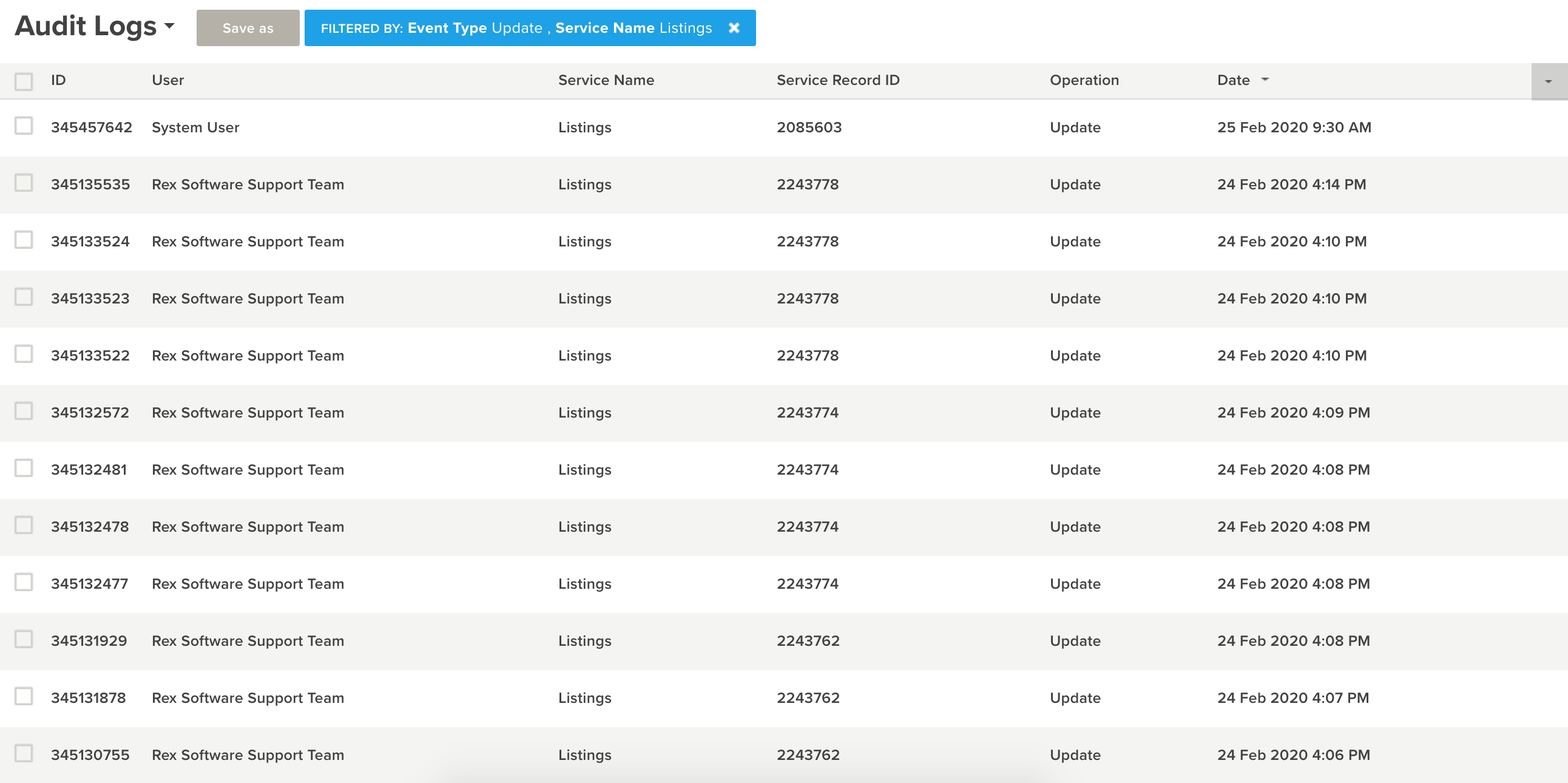
To view what action was performed, click on the relevant log:
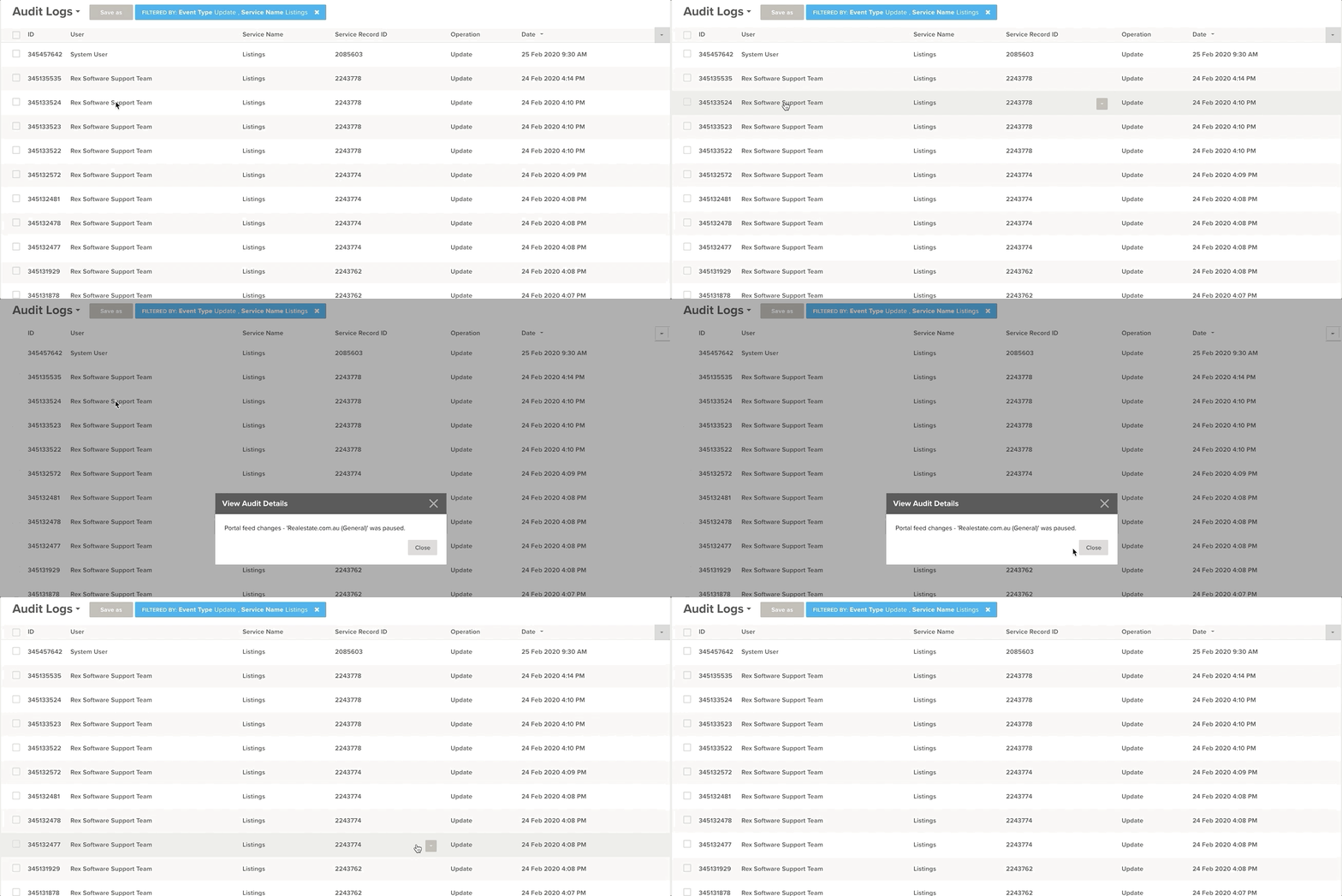
If you'd like to view the record that was effected, copy the "Service Record ID" into the Rex Search bar - making sure to include a # at the start.
